
Deposits on the order screen
The Deposit box on each order, moving a balance's due date, taking a deposit on an order you create, and the balance's order actions.
Every order screen has a Deposit box in its sidebar. What it shows depends on the order.
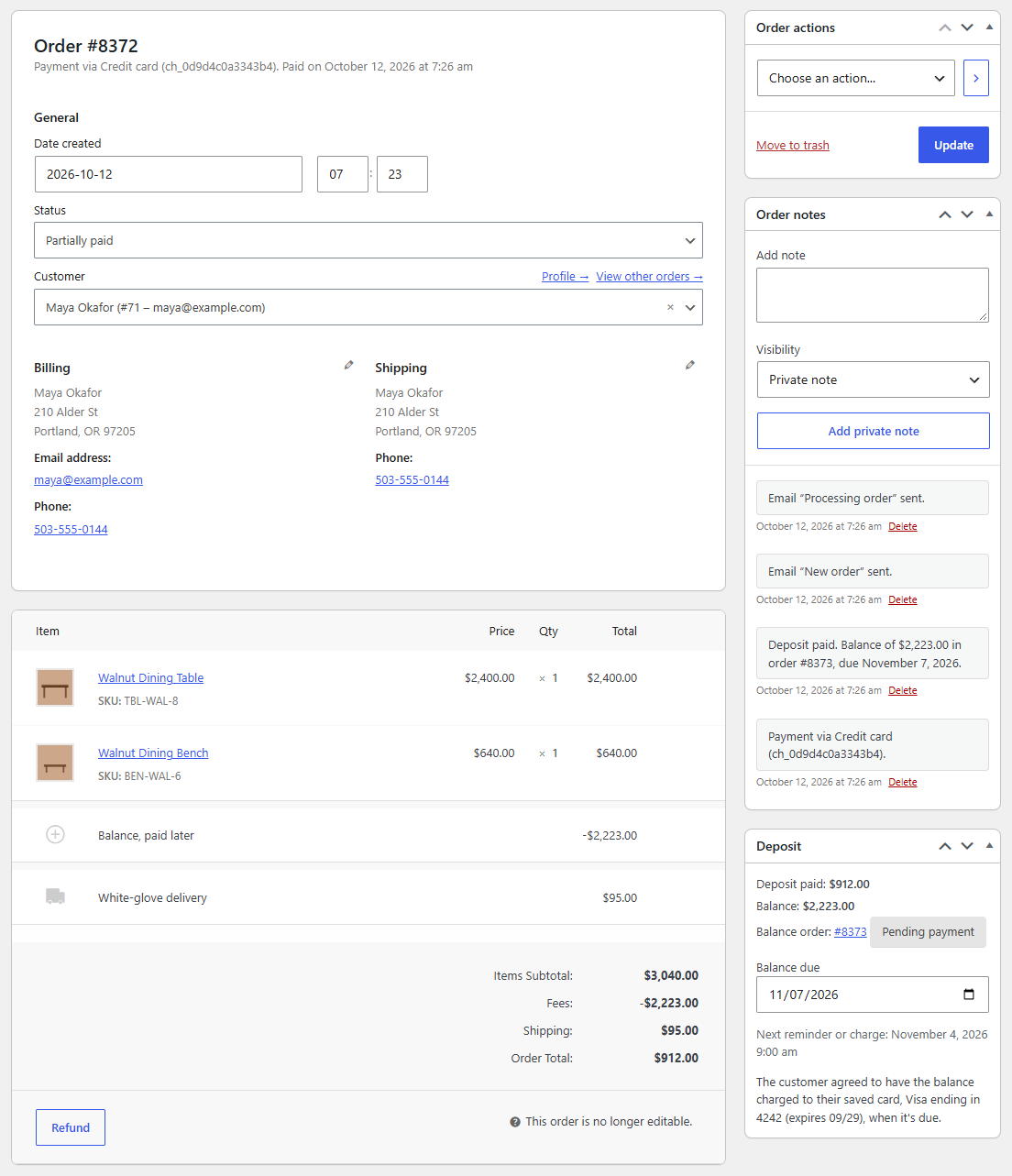
On a deposit order
- Deposit paid: (or Deposit: while it's unpaid) and Balance:, with their amounts.
- Balance order: with a link to it and its status. Before the deposit is paid: "The balance order is made when the deposit is paid."
- Balance due, a date you can change, while the balance is unpaid.
- Next reminder or charge: with its date and time.
- Whether the customer agreed to have the balance charged to their saved card, and which card (or that Saved cards is switched off, so they'll get a payment link).
- After a failed charge, "Last charge to the saved card failed:" and why.
- For an imported order, "Imported from …" with the plugin's name.
On a balance order, the box shows Balance for order: with a link back, and the due date.
Move the due date
- Open the deposit order.
- In the Deposit box, change Balance due.
- Click Update.
The order gets the note "Balance due date changed to November 20, 2026." and the reminders are planned again from the new date: the reminder before it, the due date (and the saved-card charge), then the overdue reminders. The customer's order page and emails show the new date. See Reminders and overdue balances.
A date you set here stays: it no longer follows the Balance due setting or a new Slotline delivery date. Updating the order without changing Balance due, or sending the order details to the customer, leaves the date to the setting, so on an order that isn't paid yet it still counts from the day the deposit is paid.
Note
Moving the date to today, or to a day that has passed, runs the due-date step straight away: the saved card is charged, or the link is sent.
Take a deposit on an order you create
For an order you make by hand, for example for a phone order or layaway agreed in the shop:
- Go to WooCommerce → Orders → Add order, choose the customer and add the products, shipping and taxes as usual.
- In the Deposit box, enter Take a deposit: a percentage of the products (e.g.
30%) or an amount for the whole order (e.g.100). - Click Create (or Update).
The order gets a "Balance, paid later" line, its total becomes what's due now, and a note says so: "Deposit taken: $130.00 now, a balance of $270.00 later." Then send the customer the payment link with WooCommerce's Send order details to customer action (the email says "Deposit due now: $130.00. Balance: $270.00, due after the deposit."), or mark the order Partially paid when you've been paid. Marking it Processing or Completed counts as paid too: the order moves on to Partially paid, as the balance is still to pay. Either way, the balance order is made when the deposit is paid, and the balance is collected like any other.
Tax and shipping under WooCommerce → Depositline apply here too: with Paid with the balance, the tax and shipping go into the balance; with Paid with the deposit, they're paid now.
Note
As at checkout, a balance can't be more than the products, other fees and shipping before tax. When the deposit is less than the tax, part of the tax is paid now, and the order note says so: "The deposit is less than the tax, so part of the tax is paid now: a balance can't be more than the products, shipping and other fees before tax."
Until the deposit is paid you can still change the products and click Recalculate. The balance is what the "Balance, paid later" line takes off, so edit that line's amount to change it, or remove the line and take the deposit again. Once the deposit is paid, the order's items can't be edited.
Take a deposit is offered on unpaid orders without a deposit (Pending payment, On hold, Failed or a draft). Paid orders show "No deposit on this order." If the deposit can't be taken, the screen says why:
- "Enter the deposit as a percentage (e.g. 30%) or an amount (e.g. 100)."
- "Add the products before taking a deposit."
- "That deposit is the whole order: there's no balance left."
Order actions
On a deposit order whose balance is unpaid, the Order actions list has:
- Email the balance payment link to the customer: sends the balance email now, with the note "Balance payment link sent to the customer."
- Charge the balance to the saved card: charges it now. Only shown when the customer agreed at checkout, Saved cards is on and they have a card that can be charged. If it fails, the screen shows "The balance could not be charged:" and why.
Choose the action and click the arrow next to it (or Update).