
Deposit and balance orders
The Partially paid status, the balance order made when the deposit is paid, its due date, emails, stock, refunds and Analytics.
A sale with a deposit becomes two linked orders:
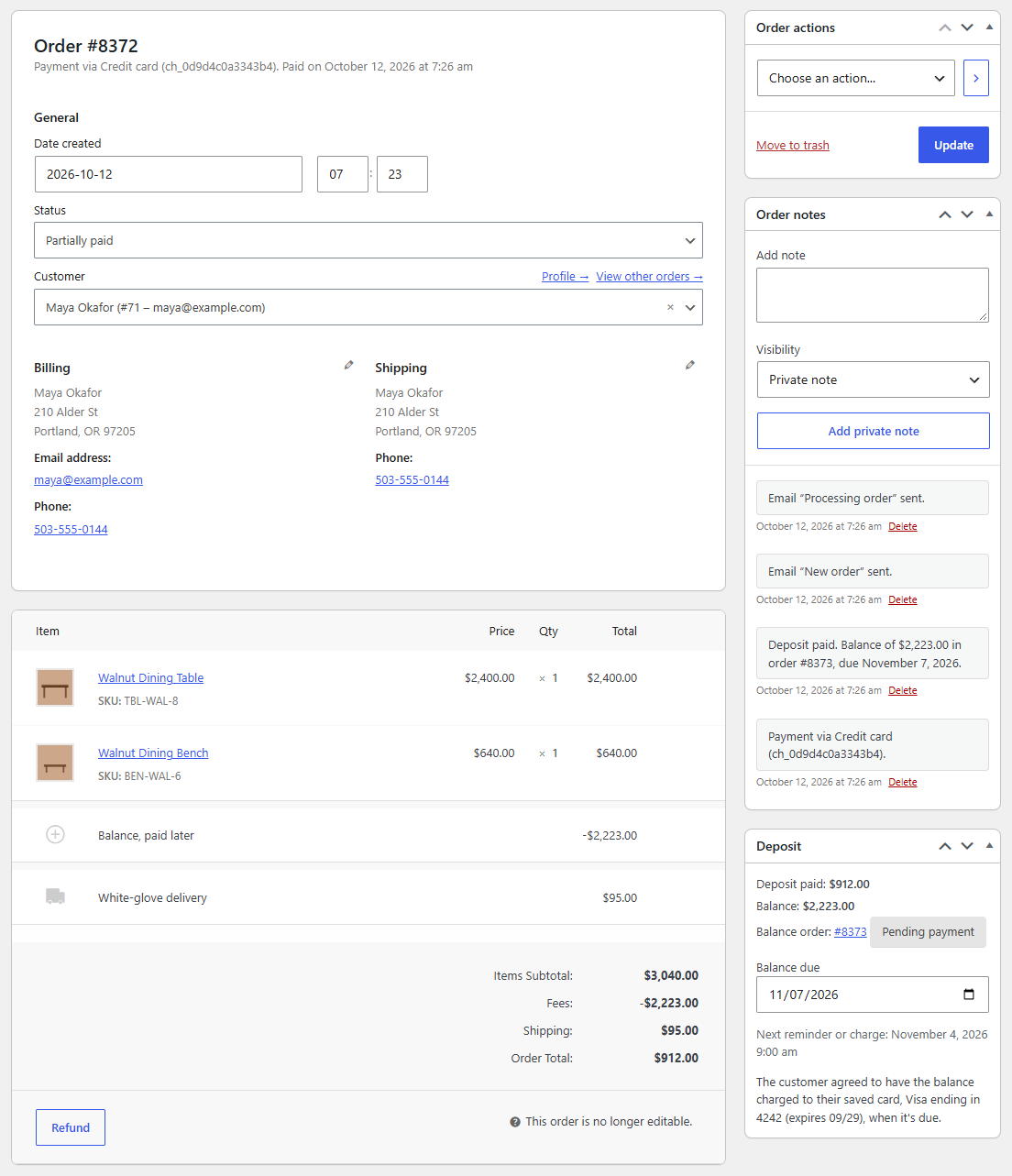
- The deposit order: the customer's order, with every product at its full price and the "Balance, paid later" line. Its total is what was paid at checkout.
- The balance order: made when the deposit is paid. It holds one line, "Balance for order #123", for the amount still owed, and has its own payment link.
Both are in WooCommerce → Orders. The balance order shows its deposit order as its parent.
From checkout to paid
- The deposit is paid. The order moves to Partially paid, a new order status. The customer gets WooCommerce's "order received" email and you get the "new order" email, both saying "Paid with a deposit of $20.00. Balance: $80.00, due November 3, 2026." Stock is reduced, as for any paid order.
- The balance order is made, with the customer's addresses and the deposit's payment method, and a due date. Both orders get a note, such as "Deposit paid. Balance of $80.00 in order #124, due November 3, 2026."
- The balance is collected: by payment link, from My Account, or charged to a saved card. See Collecting the balance and Reminders and overdue balances.
- The balance is paid. The balance order is Completed (it ships nothing), and the deposit order moves on to Processing, or Completed when nothing in it ships, with the note "Balance paid (order #124)." From here you fulfil it as usual.
Note
A deposit paid offline, by check or bank transfer, waits as On hold like any such order. When the money arrives, change the order's status to Partially paid and click Update: the balance order is made then.
The due date
Under WooCommerce → Depositline → Balance, Balance due sets it:
- days after the deposit is paid (30 by default, 0 for the same day).
- days before the delivery or pickup date, for orders with one (Slotline) (2 by default). An order with a Slotline date uses this instead.
A due date is never before today. Reminders and charges run at 9:00 in the store's time zone. You can move the due date on each order: see Deposits on the order screen.
What customers see
- The order's totals, on its page in My Account and in emails, end with Balance: and the balance's state: "$80.00, due November 3, 2026", "$80.00 paid (order #124)" or "$80.00, cancelled".
- The order's page in My Account says "The balance of $80.00 is due on November 3, 2026." with a Pay the balance button.
- The balance order's totals show Balance for: with the order it's for.
See Collecting the balance for My Account's Pay balance button.
Cancelling
When you cancel or refund a deposit order, its unpaid balance order is cancelled too, with the note "Order #123 was cancelled or refunded." Cancelling puts the stock back, as WooCommerce always does.
Refunds
Each order refunds what was paid on it:
- On the deposit order, up to the deposit (and anything else paid at checkout).
- On the balance order, up to the balance, once it's paid.
To refund a whole sale, refund the balance order and the deposit order. Refunds go through each order's payment method as usual, so a balance charged to a Stripe card is refunded through Stripe.
An unpaid balance order can't be refunded: WooCommerce shows "This balance is unpaid, so there is nothing to refund."
Reports and Analytics
- Partially paid counts as a paid status, so these orders appear in WooCommerce's reports.
- In Analytics, the deposit order counts the full sale, balance included. Balance orders are left out, so nothing is counted twice. If the balance is cancelled, only the deposit counts.
Recalculating an order
Recalculate on the order screen keeps the "Balance, paid later" line as it is and untaxed, so the order's tax stays right.
While the deposit is unpaid, you can still change the order's products. The balance follows the "Balance, paid later" line: change that line's amount to change the balance, or remove it and take the deposit again (see Deposits on the order screen). If the products drop below the line's amount, WooCommerce lowers the line to match when you recalculate, and the balance goes down with it.
Once the deposit is paid and the balance order is made, the order's items can't be edited, even when it's On hold: the Deposit box says "This order's items can't be edited now that its balance order is made: the deposit is paid and the balance order holds the rest."