
Installation
Install Depositline from your purchase, activate the license and take your first deposit in a few minutes.
Depositline comes as a zip file with your purchase from extendiment.com.
Install the plugin
- Make sure WooCommerce is installed and active. Depositline won't activate without it.
- Download
depositline.zipfrom your purchase email or your account on extendiment.com. - Go to Plugins → Add New Plugin → Upload Plugin, choose the zip, then Install Now and Activate.
- Enter your license key under Depositline on the Plugins screen, so updates arrive (see Licenses and updates).
Activating adds WooCommerce → Depositline, the Partially paid order status and deposit fields on products, variations and product categories. Nothing changes for your customers yet: the store-wide deposit starts as No deposit, so no product takes one until you set it up.
Note
If another deposits plugin is active (WooCommerce Deposits, Deposits & Partial Payments for WooCommerce by Acowebs or by Codeixer (Bayna), or YITH WooCommerce Deposits / Down Payments), Depositline pauses and shows a notice. Deactivate the other plugin first. Coming from WooCommerce Deposits (by WooCommerce or by Webtomizer), Depositline can then import its product settings and open balances: see Importing from another deposits plugin.
Take your first deposit
- Go to WooCommerce → Depositline. There's also a Settings link under Depositline on the Plugins screen.
- Check that Enable has Take deposits at checkout ticked.
- Set Store-wide deposit to Deposit, or pay in full at checkout, and Deposit amount to, say,
25%. - Click Save Changes.
- Open a product in your shop: it says "Pay a 25% deposit now and the rest later. You can also pay in full at checkout." Add it to the cart and go to the checkout.
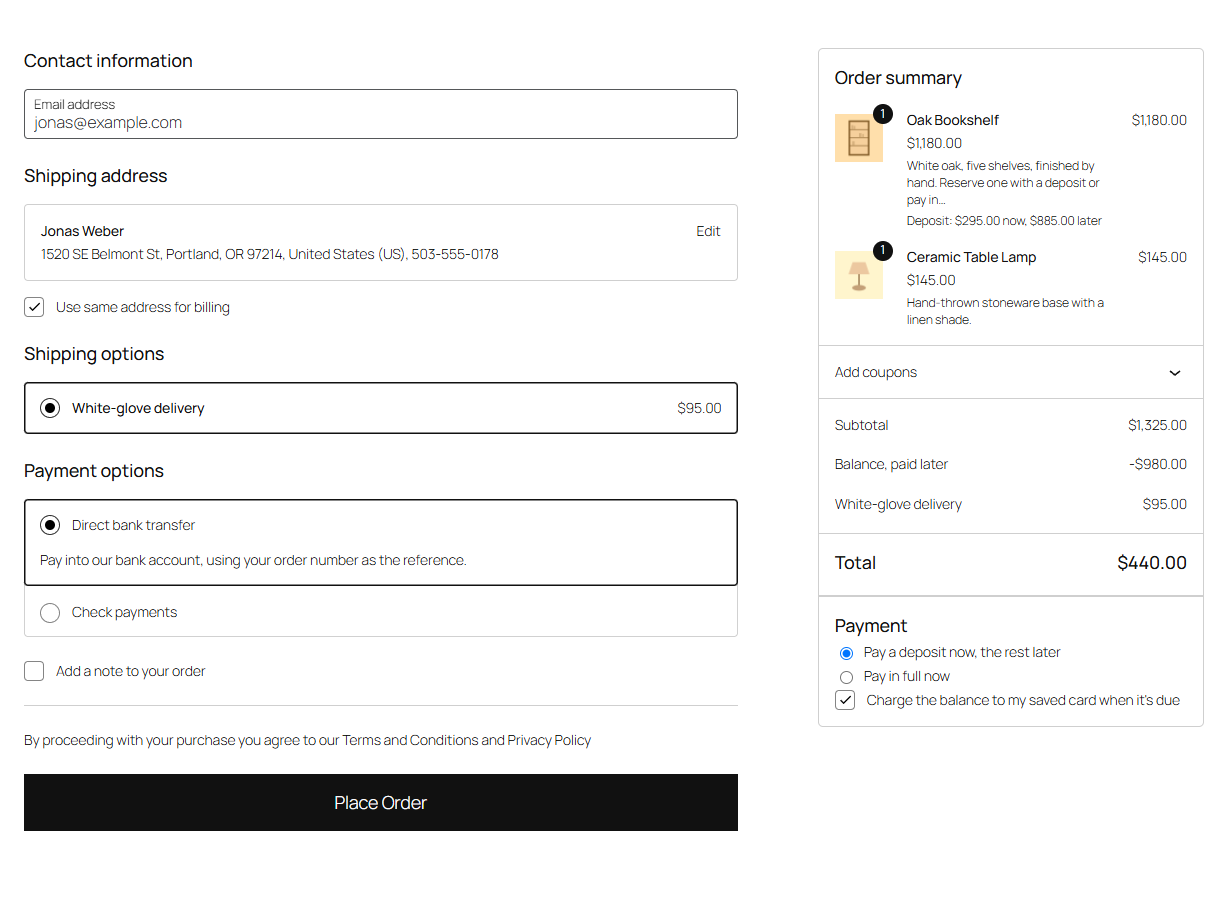
The checkout shows a Balance, paid later line that takes the rest off the total, and a Payment choice between a deposit and paying in full.
Tip
To take deposits on just a few products, leave Store-wide deposit on No deposit and set the deposit on those products' General tab, or on their category, instead.
What's next
- Setting up deposits: per product, variation, category or store-wide, and how the amount is worked out.
- Deposits at checkout: what customers see, and how tax and shipping are split.
- Collecting the balance: payment links, My Account and saved cards.
- Reminders and overdue balances: what's sent when, and what happens when a balance stays unpaid.