
More field types
Radio button, date, number, email and phone fields, how they look in each checkout, and how answers are checked.
Note
This is part of Fieldline Pro.
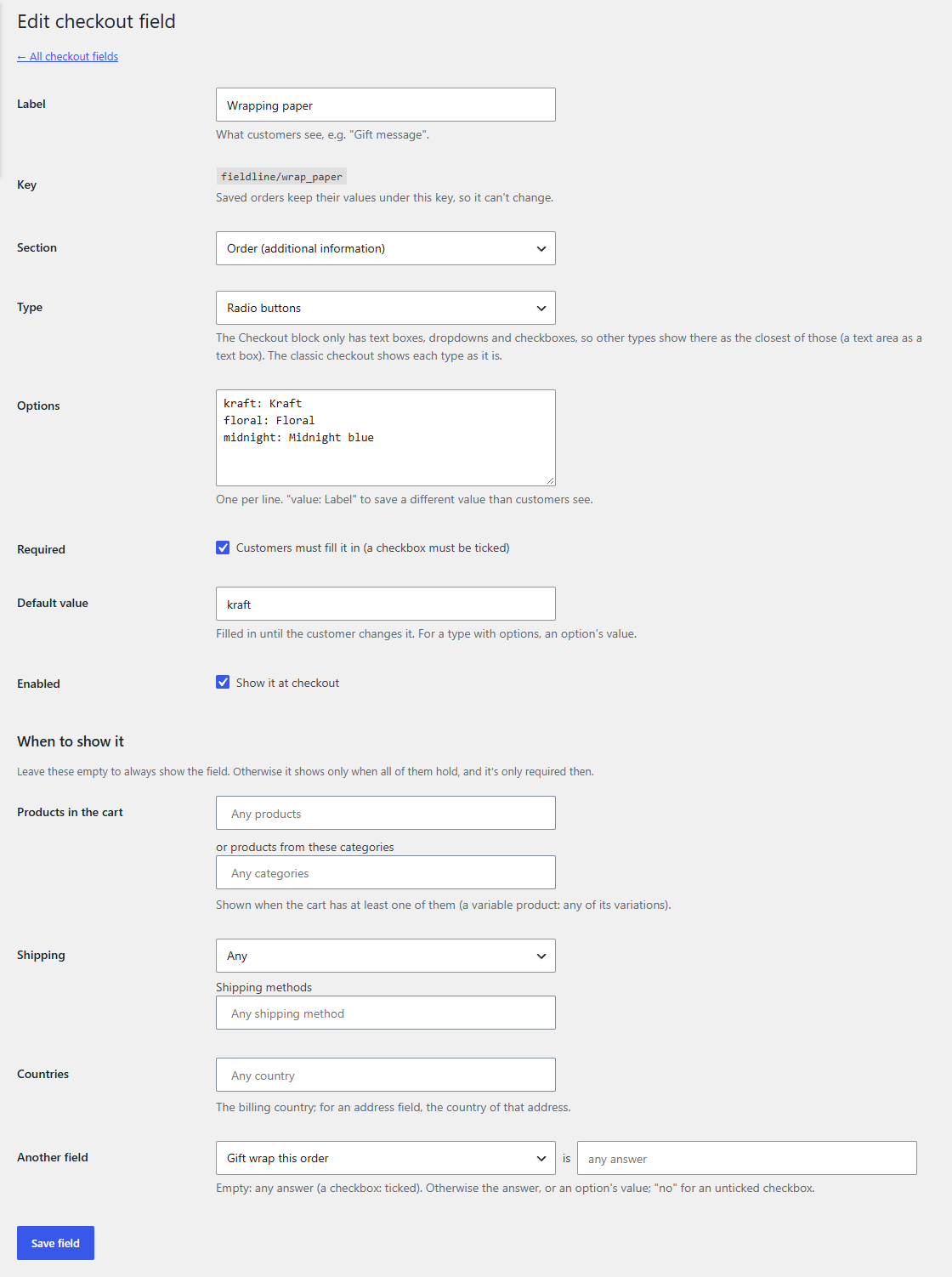
Fieldline Pro adds five types to the Type list on a field's screen.
| Type | Use it for | Classic checkout | Checkout block | Checked before the order is placed |
|---|---|---|---|---|
| Radio buttons | One answer from a short list, all visible: a wrapping paper, a size | Radio buttons | A dropdown | It's one of the options |
| Date | A delivery date, an event date, a birthday | A date picker | A date picker (WooCommerce 11.2 and later; a text box for YYYY-MM-DD before that) | A real date (no 30 February) |
| Number | Guests, a quantity, a house number | A number box | A text box that takes numbers | A number (a comma or a dot for decimals) |
| A gift recipient's email, an accounts email | An email box | A text box the browser fills in as an email | An email address | |
| Phone | A second phone number, the recipient's phone | A phone box (the phone keypad on mobiles) | A text box the browser fills in as a phone | A phone number |
Why some types look different in the Checkout block
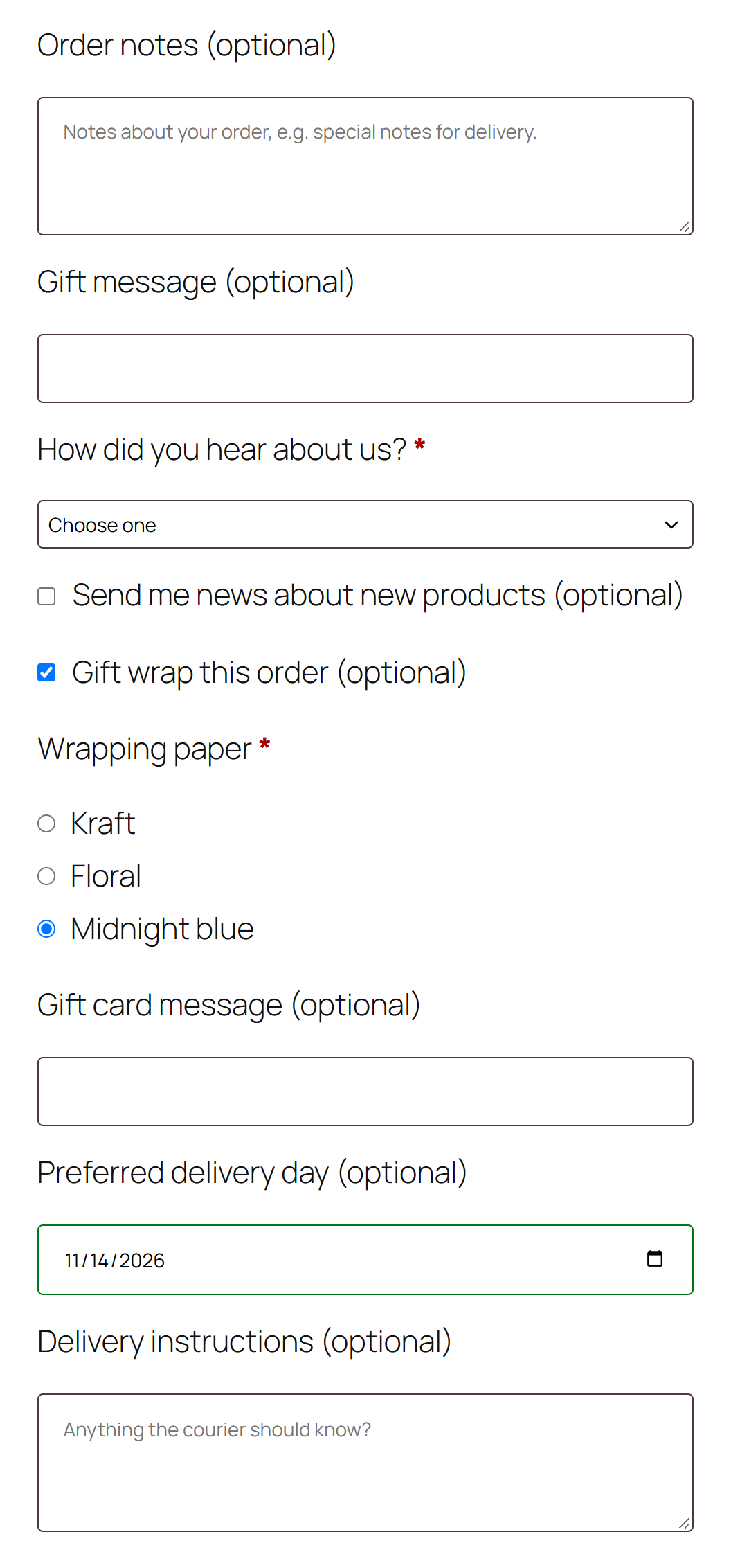
The Checkout block only has a few kinds of extra fields: text boxes, dropdowns, checkboxes and, from WooCommerce 11.2, dates. Fieldline Pro uses the closest one, and makes up for the rest:
- Radio buttons are a dropdown with the same options. Answers are saved the same way, so orders look the same.
- Date fields use WooCommerce's own date picker from WooCommerce 11.2. On older WooCommerce they are text boxes with a pattern, like number fields.
- Number fields are text boxes with a pattern, so the block points out a wrong answer as the customer types.
- Email and phone fields tell the browser what they are, so it offers to fill them in.
Whatever the browser does, every answer is checked again on the server when the order is placed, in both checkouts. A wrong answer stops the order with a message such as "Delivery day must be a date (YYYY-MM-DD)." (WooCommerce's own date picker words its messages itself.)
Settings by type
- Radio buttons need options, entered like a dropdown's: one per line,
value: Labelto save a short value. They have no placeholder. Set a Default value to start with one choice selected. - Date fields take a default as
2026-12-24; anything else is refused when you save, because a date picker can't show it. Dates read in your store's date format (Settings → General) on the order screen, in My Account and in emails. - Number, email and phone fields take a placeholder and a default like a text field.
Making a date field useful
A date field accepts any real date unless you set Dates allowed: the first and last day it takes, in days after the order. 0 is the day the customer orders, 1 the next day, and a negative number is a day before it. Leave a box empty for no limit that way. For example:
- A delivery day from tomorrow to two months ahead: From 1 to 60.
- A date that can't be in the past: From 0, to empty.
- A date of birth at least about 18 years back: From empty to -6575 (limits count days, so leap years can shift this by a day).
The days are counted in your store's timezone (Settings → General), so 1 is the day after today there. The date picker greys out the days outside them (in the classic checkout, and in the Checkout block from WooCommerce 11.2), and the order is refused if one arrives anyway. A default date that has fallen outside them is left out, so the customer starts with an empty box rather than one that stops the order. The list of fields shows them under the field's label, such as "Dates from 1 day after the order to 60 days after the order".
To ask for a delivery date only when the order is delivered, give it a condition (When to show it → Shipping → Delivery); see Conditional fields.