
Conditional fields
Show a field only for some products, shipping choices, countries, or when another field has a certain answer.
Note
This is part of Fieldline Pro.
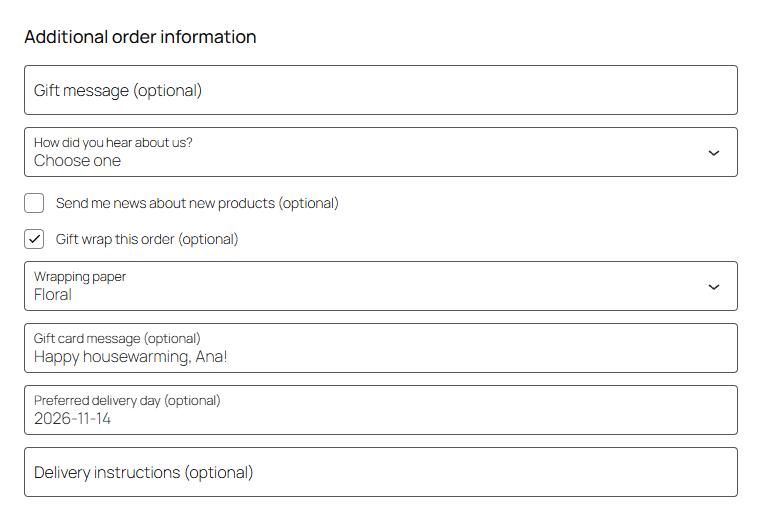
A field can show only when it applies: a gift card message once "Gift wrap" is ticked, a pickup name for local pickup only, an engraving text when the cart has an engravable product. Customers who don't need the field never see it, and a required field is only required while it shows.
Setting conditions
Edit a field and scroll down to When to show it. Leave everything empty to always show the field. Otherwise it shows only when all the conditions you set hold.
Products in the cart : Search for products. The field shows when the cart has at least one of them. Choose a variable product to include all its variations, or a single variation on its own.
or products from these categories : The field shows when the cart has a product from one of these categories. Combined with products above, either is enough.
Shipping : Local pickup shows the field only when the customer picks the order up; Delivery only when it's delivered. Both WooCommerce's pickup locations and the classic Local pickup method count as pickup.
Shipping methods : The field shows only with one of these methods, such as Flat rate or Free shipping.
Countries : The field shows only for customers in one of these countries: the billing country, or for an address field, the country of that address. A "Gate code" for UK addresses only, for example.
Another field
: The field shows only when another field has a certain answer:
: - leave the answer empty for "any answer" (or, for a checkbox, "ticked"),
: - type an option's value (the part before the colon) for a dropdown or radio buttons,
: - type no for "not ticked".
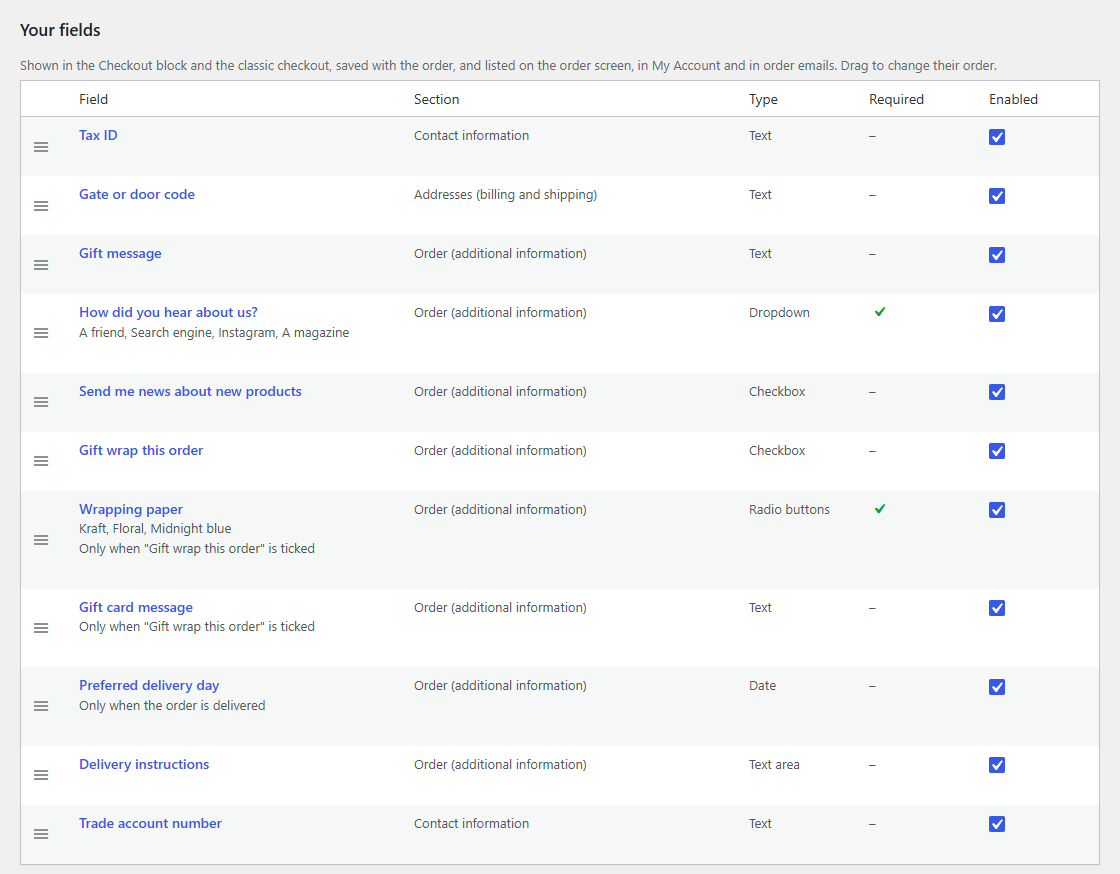
Click Save field. In the list of fields, the conditions are spelled out under the field's name, such as "Only when the order is picked up and the address is in DE, FR".
How it behaves at checkout
- In the Checkout block, the field appears and disappears as the customer fills in the checkout: ticks a box, picks local pickup, changes the country. Fieldline Pro hands the conditions to WooCommerce as its own field rules, so the block does this itself, and checks them again when the order is placed.
- In the classic checkout, a small script does the same as the customer fills it in, and the server checks the conditions again when the order is placed.
- A field that doesn't show isn't required and isn't saved, even if the customer typed something before it disappeared.
- A default value is filled in when the field appears.
Examples
| You want | Set |
|---|---|
| A gift card message after "Gift wrap" is ticked | Another field: Gift wrap, is: (empty) |
| A pickup name for local pickup only | Shipping: Local pickup; tick Required |
| A preferred delivery day, never for pickup | Shipping: Delivery |
| Engraving text for engravable products | Products in the cart: the engravable products, or their category |
| A VAT number for EU business customers | Countries: the EU countries; Another field: "Buying for a business", is: (empty) |
| "Who told you?" when "How did you hear about us?" is "A friend" | Another field: How did you hear about us?, is: friend |
Things to know
- Conditions are about the checkout as the customer fills it in. Once an order is placed, its answers stay as they were, whatever changes later.
- A field can't depend on itself. A condition on another field looks at that field's current answer, so keep chains short: if B only shows under a condition, make C depend on B's own conditions too rather than on B alone.
- Product conditions are worked out from the cart when the checkout loads; the cart doesn't change on the checkout page.
- If Fieldline Pro is deactivated, fields with conditions are left out of checkout (rather than shown to everyone) until it's active again; see Licenses and updates.