
Adding and editing fields
Every setting on a field's screen, what it does, and what changes when you edit a field later.
Fields are added and edited on their own screen: WooCommerce → Checkout Fields → Add field, or click a field's name in the list.
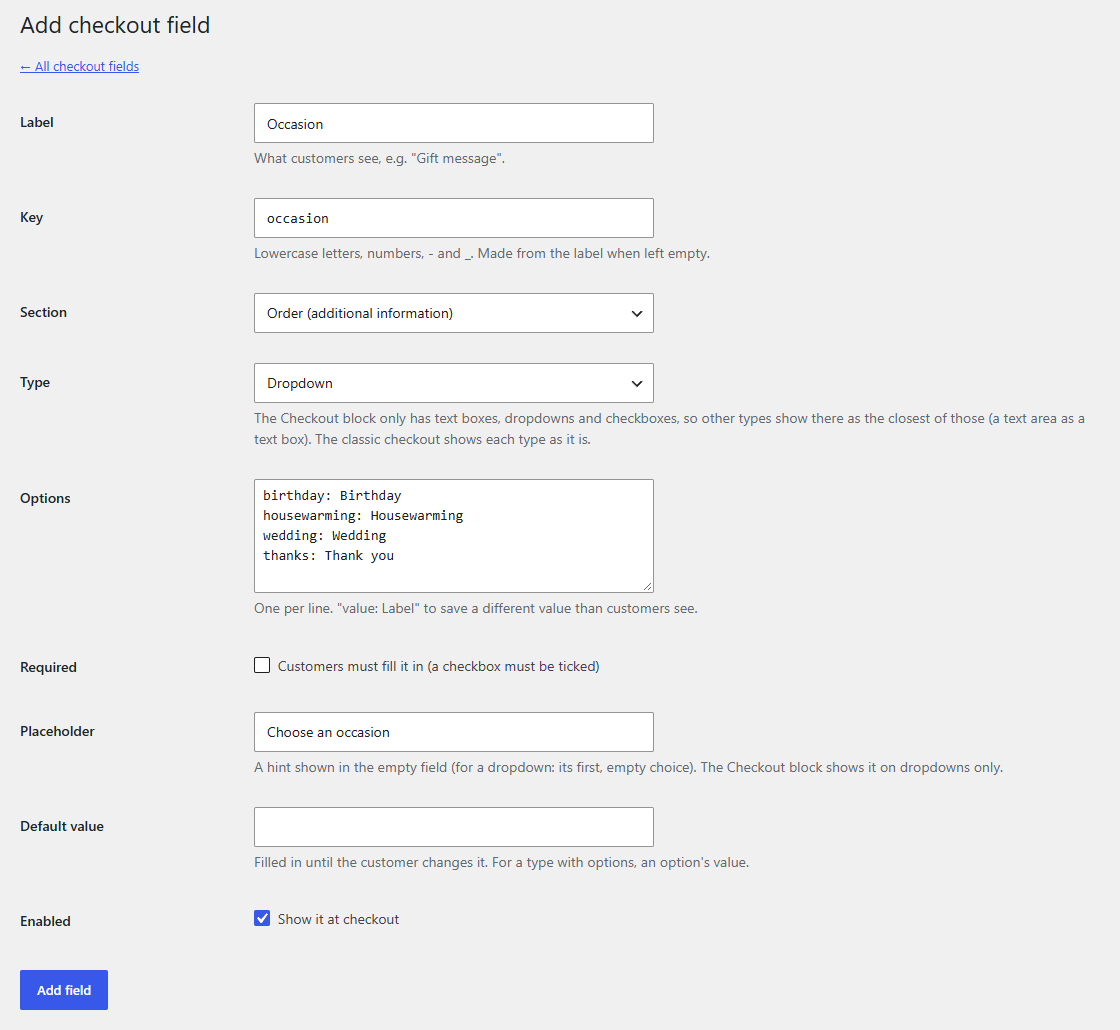
The settings
Label : What customers see next to the field, for example "Gift message" or "How did you hear about us?". In the Checkout block, WooCommerce adds "(optional)" to fields that aren't required.
Key
: The field's name inside WooCommerce, made from the label as you type it (lowercase letters, numbers, - and _, up to 40 characters). Answers are saved under it, as fieldline/your_key. You can type your own before you save; after that it's fixed, so answers on old orders stay linked to the field.
Section : Where the field appears. See Where fields appear.
Type : Text, text area, dropdown or checkbox. See Field types.
Options
: For a dropdown: one choice per line. Write value: Label to save a short value but show customers a longer label, for example friend: A friend told me. A line without a colon is both the value and the label.
Required : Customers must fill the field in before they can place the order. A required checkbox must be ticked, which suits "I agree to…" boxes.
Placeholder : A hint shown in the empty field. See Placeholders and default values.
Default value : What the field starts with. See Placeholders and default values.
Enabled : Whether the field shows at checkout. Switch a field off instead of deleting it when you might need it again.
Click Add field (or Save field). It shows at checkout straight away.
If something is missing
The field isn't saved and you're back on its screen, with what you typed kept, when:
- it has no label,
- its key is already used by another field (choose another key), or
- it's a dropdown without any options.
Editing a field
Click the field's name in the list, change what you need and click Save field. Changes show at checkout straight away. Orders already placed keep the answers they have; a new label shows on them too, because the label comes from the field.
Changing a field's type later is possible, but think about the answers already saved: changing a dropdown to text keeps the saved values (friend), which then show as they are rather than as the option's label.
Deleting a field
Hover over the field in the list and click Delete, then confirm. The field disappears from checkout. Answers already saved on orders stay in the database, but they're no longer listed on the order screen and in emails, because Fieldline no longer knows the field's label. If you might need the answers again, switch the field off instead.