When you make something to order, such as furniture, a wedding cake or a custom print, you want money up front before you buy materials, but asking for the full price weeks ahead puts buyers off. This guide sets up a deposit on your made-to-order products: the customer pays part at checkout, and the balance gets its own due date, payment link and reminders, so you don't have to chase it.
What you need
- WooCommerce, with at least one payment method set up.
- Depositline, a paid plugin: every step in this guide uses it. See Depositline.
- Optional: the free WooCommerce Stripe Gateway, if you want the balance charged to the customer's saved card on its due date.
WooCommerce on its own has no deposits at checkout. For free, you can create orders by hand under WooCommerce → Orders → Add order, one for the deposit and one for the balance, and send the customer each order's payment link. That works for a few orders a month. Depositline takes the deposit at checkout instead, and the balance order, its due date and the reminders follow on their own.
The worked example is a furniture workshop whose dining tables are built to order in six weeks. The tables sit in a product category called Made to order, and the workshop wants a 30% deposit on each one.
Step 1: Check the store-wide settings
Go to WooCommerce → Depositline.
- Under Deposits, check that Enable has Take deposits at checkout ticked.
- Leave Store-wide deposit on No deposit. That keeps the rest of your shop at full price, so only the products you pick take a deposit.
- Choose Tax and shipping:
- Paid with the balance (the default): the customer pays only the deposit today. The tax and the shipping are added to the balance.
- Paid with the deposit: the customer pays the deposit, the tax and the shipping today. The balance is only the rest of the price.
The workshop keeps Paid with the balance, since tables are delivered when the balance is paid.
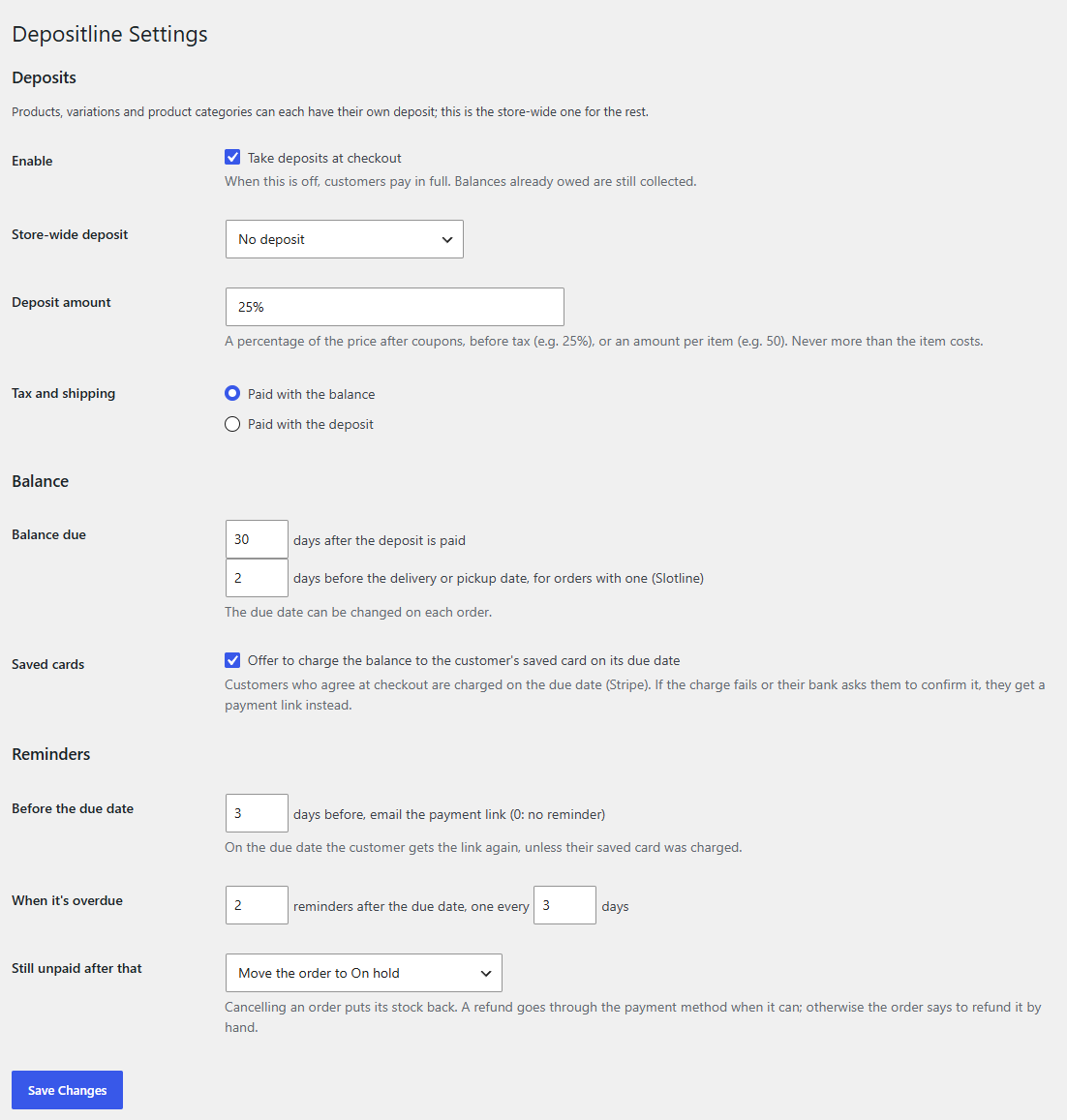
You'll come back to the Balance and Reminders sections of this screen in steps 4 and 5.
Step 2: Put a deposit on your made-to-order category
A deposit can be set store-wide, per category, per product or per variation, and the most specific setting wins. For a range of products, the category is quickest.
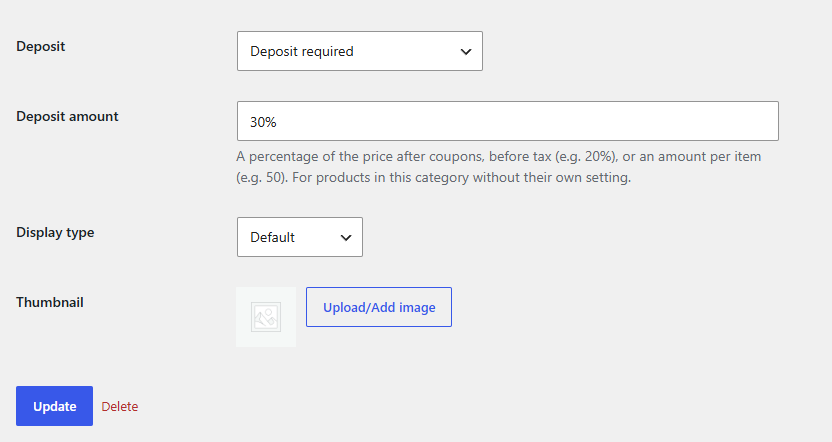
- Go to Products → Categories and edit your made-to-order category (or add one).
- Set Deposit to the mode you want:
- Deposit required: the customer always pays the deposit now and the balance later.
- Deposit, or pay in full at checkout: the customer can also choose to pay everything now.
- Enter the Deposit amount: a percentage, such as
30%, or an amount per item, such as200. A percentage is worked out on the price after coupons, before tax. The percentage must be below 100%, and a deposit is never more than the item costs. - Click Update.
The workshop sets the Made to order category to Deposit required at 30%.
Tip
When a product is in several categories with a deposit, the first one by name is used. If that gets confusing, set the deposit on the product instead.
Step 3: Adjust single products or variations
Some products need a different deposit from the rest of the category.
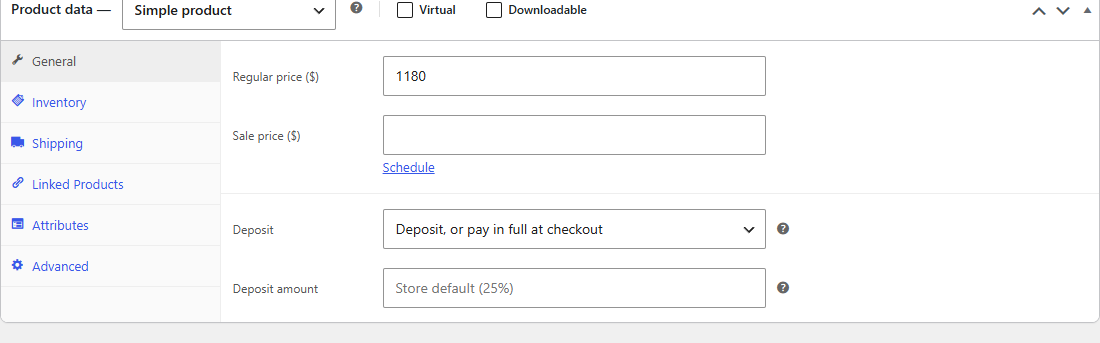
- On a product: edit it, open its General tab, and set Deposit and Deposit amount. Store default (…) follows the category or store-wide setting, and an empty amount uses the default shown in the field.
- On a variation: open the Variations tab, expand a variation, and set Deposit and Deposit amount under its price. Same as the product follows the product.
The workshop's oak table comes in a standard and a hand-oiled finish. The hand-oiled variation takes 50%; the standard one follows the category's 30%. Click Save changes on the variations and Update on the product.
Step 4: Set when the balance is due
Back under WooCommerce → Depositline, in the Balance section, set Balance due: so many days after the deposit is paid (30 by default, 0 for the same day, up to 365). If you use Slotline for delivery or pickup dates, orders with a date use the second field instead: so many days before the delivery or pickup date.
The workshop's tables take six weeks, so it enters 42 days.
You can move the due date on a single order later, in the Deposit box on the order screen, for example when a build runs late.
If the WooCommerce Stripe Gateway is active, leave Saved cards ticked: customers who agree at checkout are charged on the due date, and get a payment link if the charge fails. Without Stripe, customers pay the balance with the emailed payment link, using any payment method your store offers.
Step 5: Set the reminders
In the Reminders section:
- Before the due date: how many days before, email the payment link (3 by default; 0 for no reminder). On the due date itself, the customer gets the link again, unless their saved card was charged.
- When it's overdue: how many reminders after the due date (2 by default), one every so many days (3 by default).
- Still unpaid after that: what happens next.
- Nothing: keep the order as it is
- Move the order to On hold (the default)
- Cancel the order and keep the deposit
- Cancel the order and refund the deposit
- Click Save Changes.
For custom work, Move the order to On hold is usually safest: you can follow up, and the customer can still pay.
With the workshop's defaults, a deposit paid on November 2 makes the balance due on December 14. The link goes out on December 11 and 14, reminders on December 17 and 20, and an order still unpaid on December 23 moves to On hold. Each step runs at 9:00 store time and stops once the balance is paid.
What the customer sees
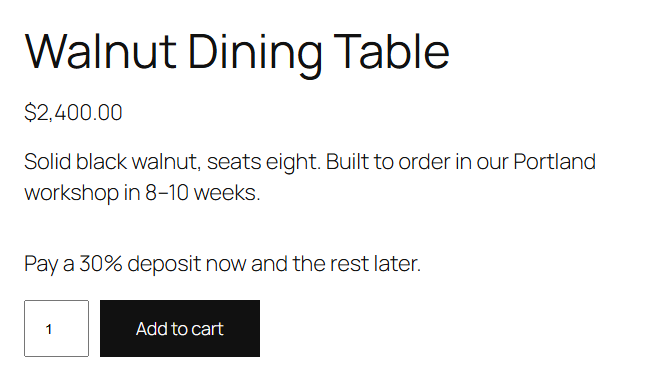
On the product page, above Add to cart: "Pay a 30% deposit now and the rest later." With an optional deposit, it adds "You can also pay in full at checkout."
In the cart and at checkout, the table keeps its full price, with Deposit: $540.00 now, $1,260.00 later under its name for an $1,800 table. A Balance, paid later line takes the balance off the total, so the total is what the customer pays today.
If the deposit is optional, the checkout shows Payment with Pay a deposit now, the rest later and Pay in full now. Express buttons such as Apple Pay are hidden while a deposit is paid, as they would charge the whole cart.
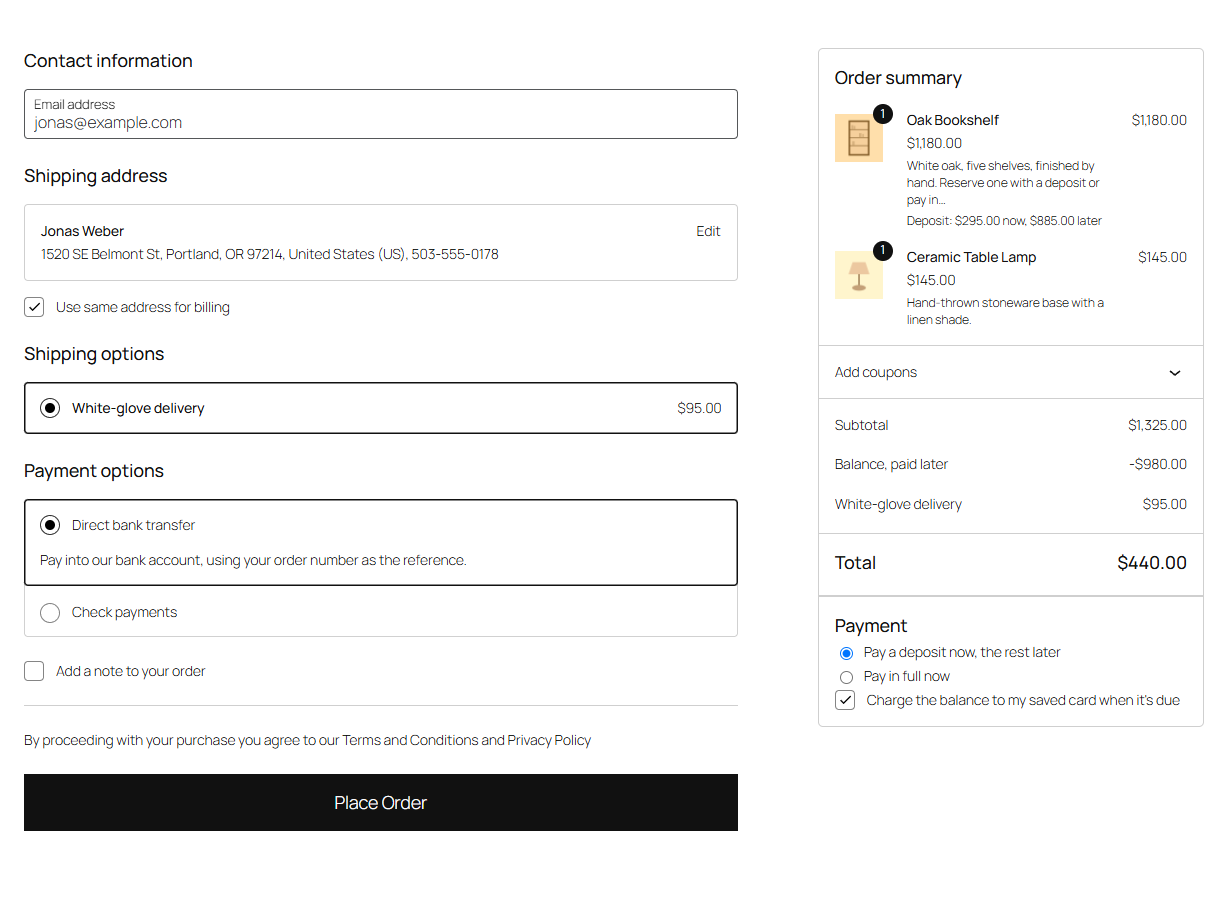
In this example only one item takes a deposit; the other is paid in full, and the saved-card box shows because the store uses Stripe.
What happens to the order
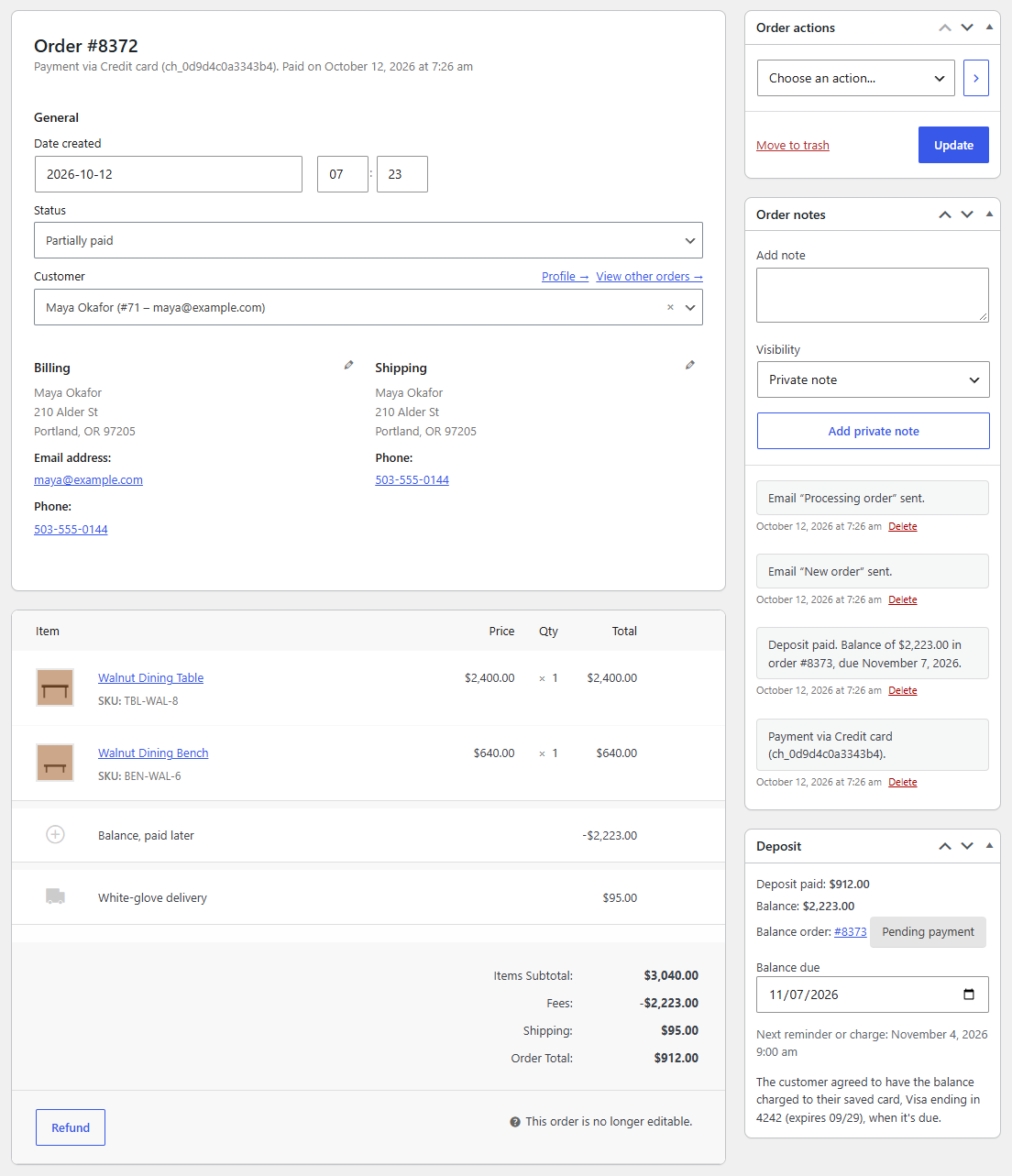
- The deposit is paid. The order moves to Partially paid, and stock is reduced, so the item is set aside for the customer. The emails say "Paid with a deposit of $540.00. Balance: …, due December 14, 2026."
- A balance order is made, linked to the first one, with one line ("Balance for order #1048") and its own payment link. You'll find both in WooCommerce → Orders.
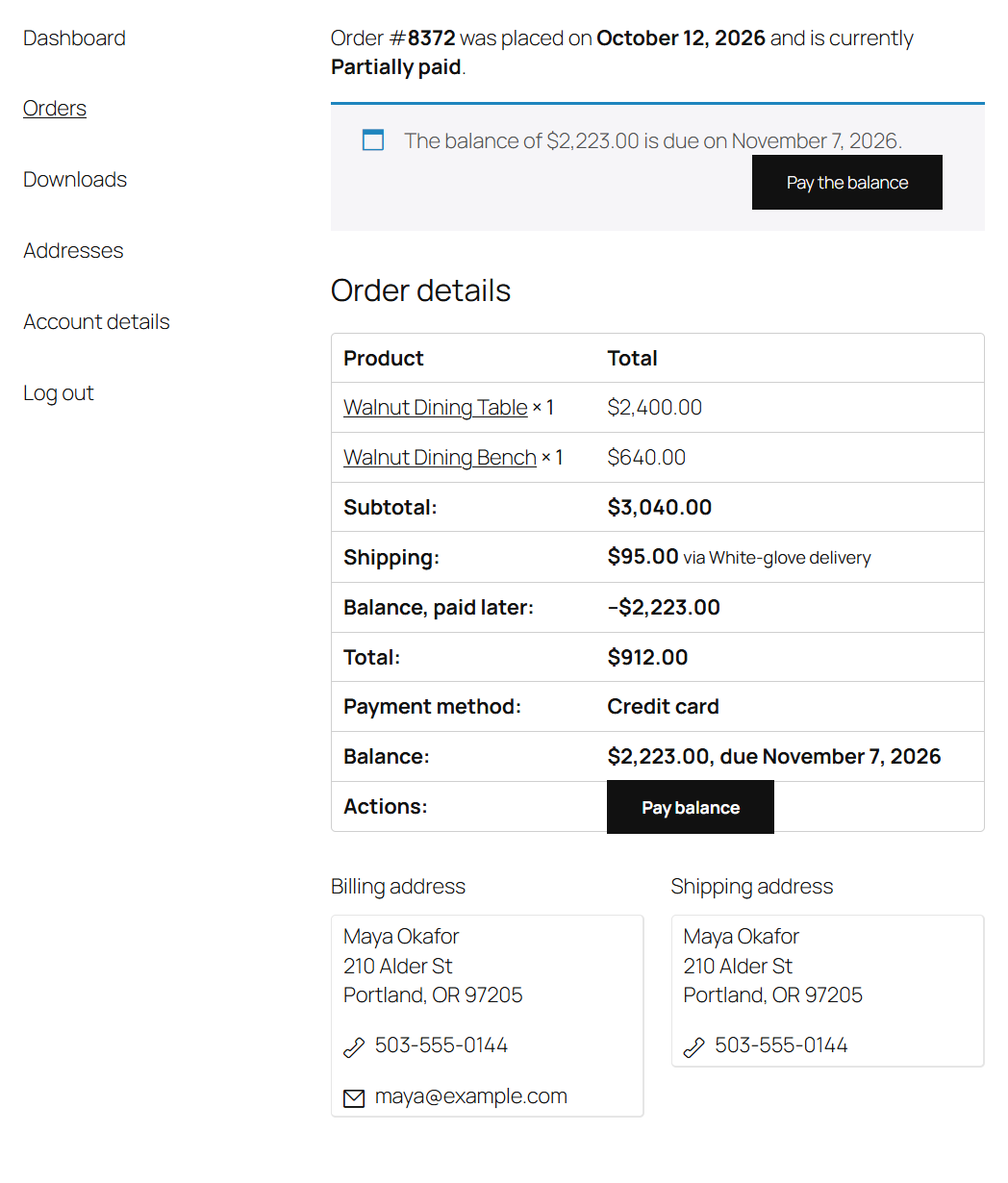
- The balance is paid, from the emailed link, the Pay balance button in My Account → Orders, or the saved card. The first order then moves on to Processing, and you deliver it as usual.
In My Account → Orders, the customer sees the balance, its due date and a button to pay it:
Note
A deposit paid by check or bank transfer waits as On hold, like any such order. When the money arrives, change the order's status to Partially paid and click Update: the balance order is made then.
Check it works
- Open a made-to-order product in a private window and look for the deposit line above Add to cart.
- Add it to the cart and go to checkout. Check the Deposit: … now, … later line under the item and the Balance, paid later line in the totals.
- Place the order with a payment method that marks it paid.
- In WooCommerce → Orders, open the order. It's Partially paid, and its Deposit box shows Deposit paid:, Balance:, the Balance order:, Balance due and Next reminder or charge:.
- Refund and cancel the test orders when you're done: cancelling the deposit order cancels its unpaid balance order too.
Common questions
Can I take a deposit on a quote or phone order? Yes. Create the order under WooCommerce → Orders → Add order, add the products, then enter Take a deposit in the Deposit box (a percentage, such as 30%, or an amount for the whole order) and click Create. Send the payment link with WooCommerce's Send order details to customer action.
Can customers pay the balance early? Yes. The payment link and Pay balance work from the moment the balance order is made.
Can the balance be split into several payments? No. Each sale has one deposit and one balance.
Related
You’re set

DepositlineTake a deposit now and charge the balance later: deposits, layaway and scheduled balance payments for WooCommerce.
See Depositline