You sell to the public and to other businesses, and the two pay different prices. You want trade buyers to apply, you decide who gets in, and once approved they see their own prices every time they log in, without codes or a separate shop. By the end of this guide you'll have a trade group with its own prices, an application form, and (if you want it) prices hidden from everyone who isn't approved.
What you need
- WooCommerce, set up with your products and their regular prices.
- Wholesaleline, a paid product. Every step below uses it.
WooCommerce on its own has one price per product for everyone. The closest it gets is a coupon limited to certain email addresses under Usage restriction → Allowed emails: that works for a handful of buyers, but they see retail prices until they type the code at checkout, and you add each new buyer to the coupon by hand. Wholesaleline adds the parts WooCommerce doesn't have: customer groups, prices per group, applications and hidden prices.
The example store throughout is a small candle maker. Retail shoppers pay the regular prices; gift shops that stock the candles get 30% off, and 40% off the wax melts they order by the box.
Create a trade group
A group holds everything trade customers share: their prices, a minimum order, and the payment and shipping methods they may use. A customer is in one group at most.
- Go to WooCommerce → Wholesale. The Groups tab opens.
- Click Add group.
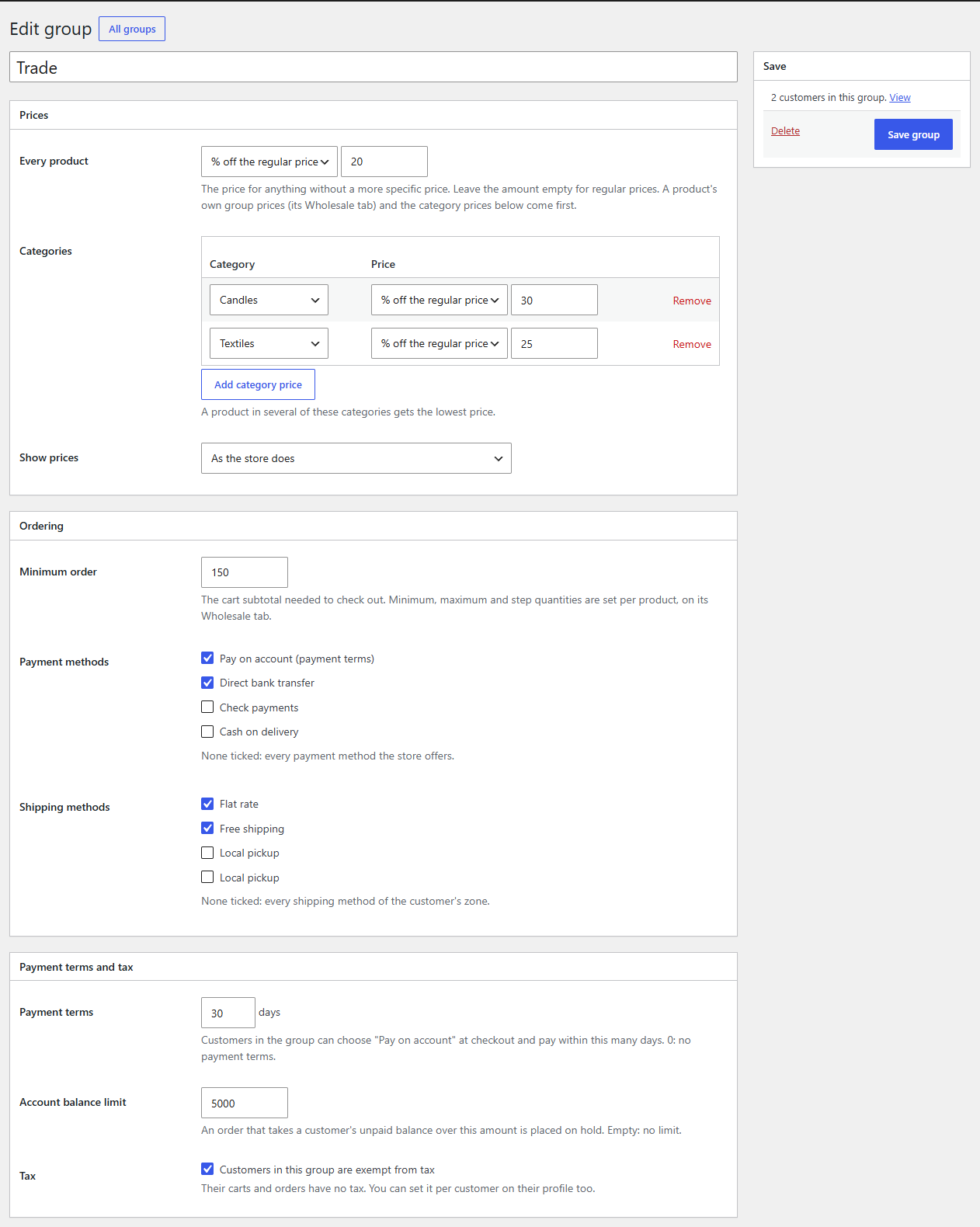
- Enter a Group name, such as "Trade". Customers see it under My Account → Wholesale account.
- Leave the rest for now and click Save group.
Set the group's prices
Still on the group's screen, under Prices:
- Every product: choose % off the regular price and enter 30. This is the group's price for anything without a more specific one. Leave the amount empty if the group should pay regular prices by default.
- Categories: click Add category price, choose the "Wax melts" category, choose % off the regular price and enter 40. A product in several of these categories gets the lowest price.
- Show prices: trade buyers often think in prices without tax. Choose Excluding tax to show them prices that way, or leave As the store does.
- Click Save group.
So a candle with a regular price of 24.00 now costs a Trade customer 16.80, and a box of wax melts at 15.00 costs them 9.00.
A percentage is always taken off the regular price, not the sale price: the group price replaces any sale. If you want a fixed price instead, choose Fixed price and enter the amount.
A different price for one product
Some products have their own trade price, such as a gift set you can only sell at a smaller margin:
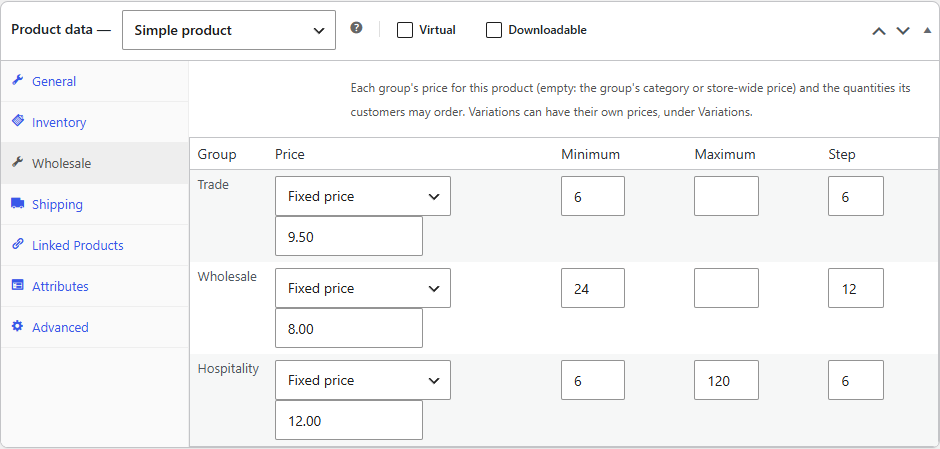
- Edit the product and open its Wholesale tab.
- For the Trade group, choose Fixed price and enter 32, for example.
- Click Update.
The product's own price comes before the group's category and store-wide prices. On the same tab, Minimum, Maximum and Step set the quantities the group may order, such as a step of 6 for candles sold by the half dozen. For a variable product, each variation has Wholesale prices under Variations.
Tip
One trade customer with a contract price? Open their profile under Users, find Own price list in the Wholesale section and click Add price. Their own prices come before their group's.
Turn on applications
Applications are on when you install Wholesaleline, but they need a group to send approved customers to.
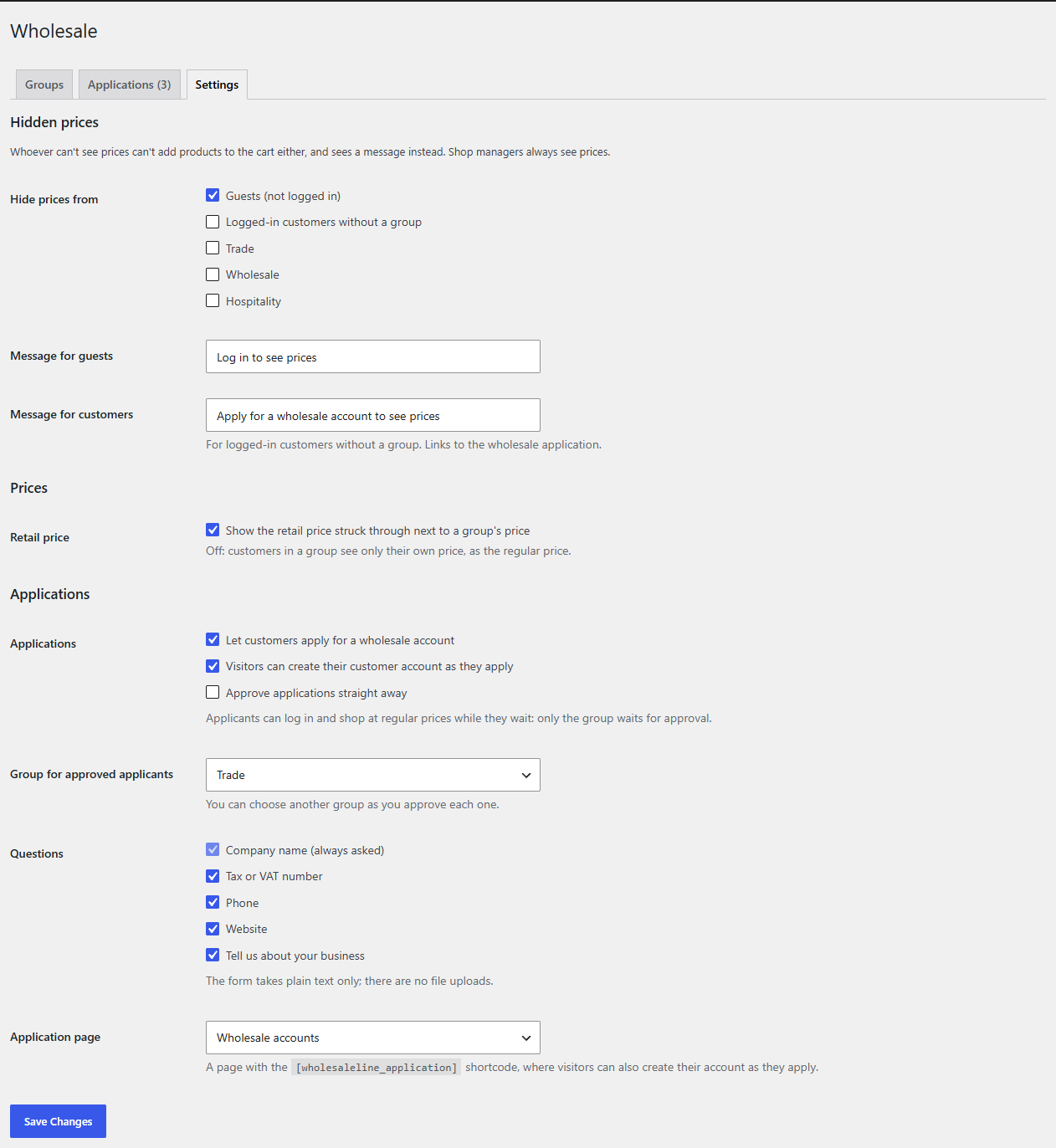
- Go to WooCommerce → Wholesale → Settings.
- Under Applications, check that Let customers apply for a wholesale account is ticked.
- Group for approved applicants: choose Trade.
- Questions: the company name is always asked. Tick the others you want, such as Tax or VAT number, Phone, Website and Tell us about your business.
- Leave Approve applications straight away off, so you review each one.
- Click Save Changes.
Customers apply from My Account → Wholesale account. To let new visitors apply too, make a page called "Trade accounts", add this shortcode to it (with the Shortcode block, for example):
[wholesaleline_application]
Then choose that page as the Application page and keep Visitors can create their customer account as they apply ticked. Visitors enter their email address as they apply, and their customer account is created with the application.
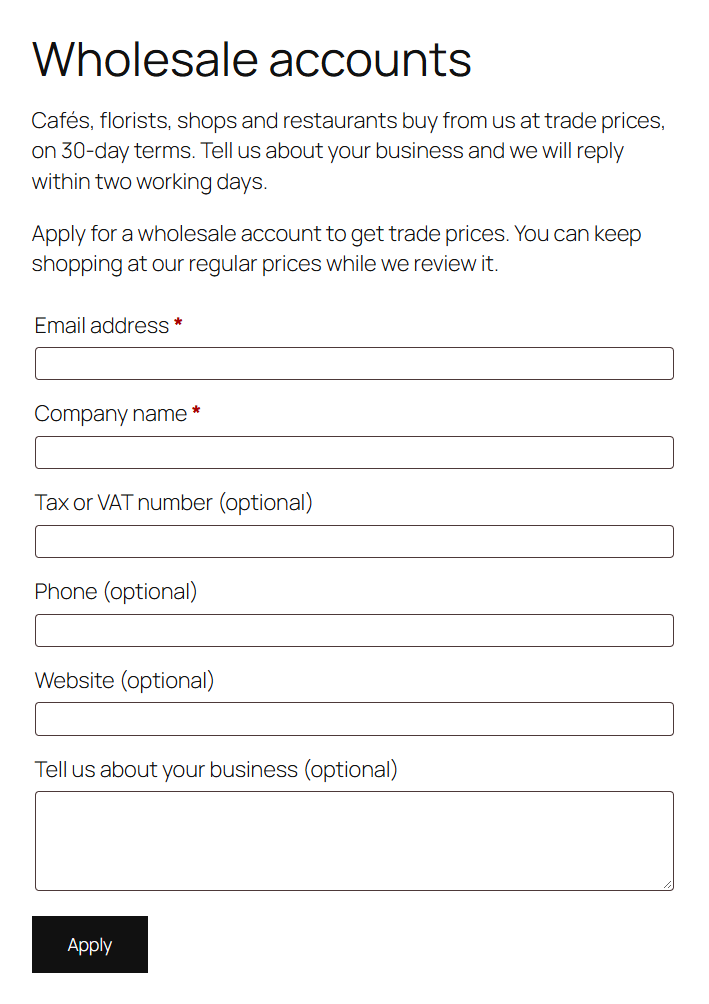
The form takes plain text only. If you need a resale certificate, ask for it by email.
Approve or decline applications
When someone applies, you get the New wholesale application email, and the Wholesale menu shows how many applications are waiting.
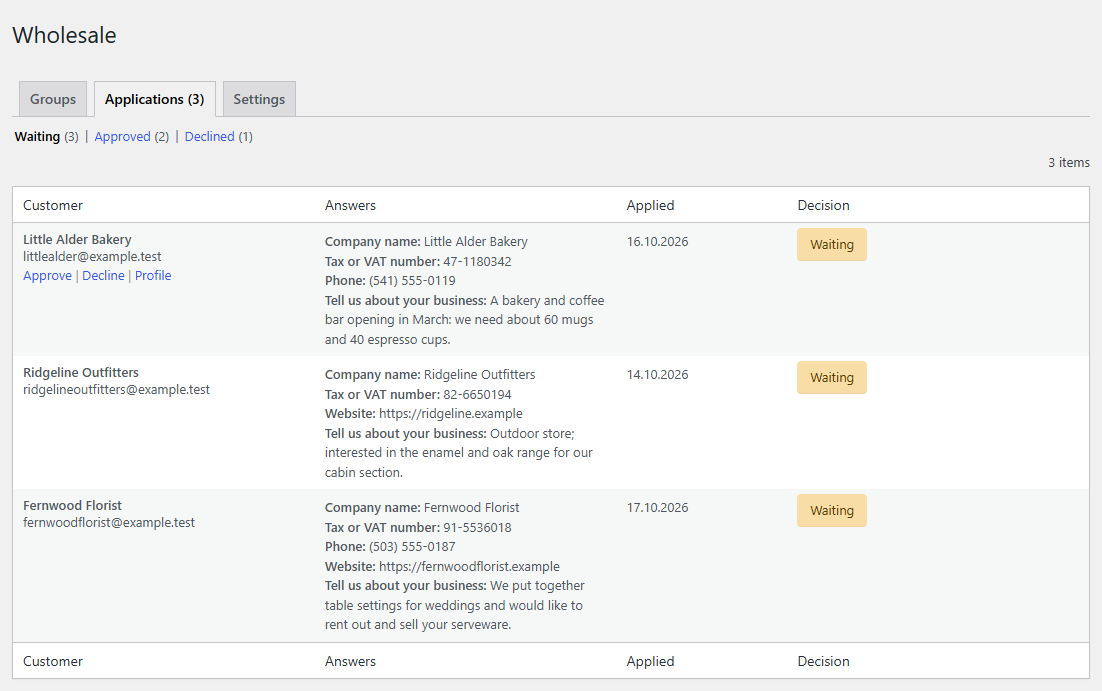
- Go to WooCommerce → Wholesale → Applications. Waiting, Approved and Declined filter the list.
- Read the applicant's answers. Profile opens their account.
- Hover over the row and click Approve to put them in the Trade group, or Decline, which asks for an optional reason.
The customer gets Wholesale application approved ("Your wholesale account is ready") or Wholesale application declined, with your reason. You can change or turn off each email under WooCommerce → Settings → Emails.
Applicants never wait to log in: they shop at your regular prices until you approve them. Only the group waits.
Tip
Already have trade customers? On the Users screen, tick them, choose Add to group: Trade in Bulk actions and click Apply. No application needed.
Hide prices from everyone else (optional)
For a trade-only shop, where only approved customers may see prices at all:
- Go to WooCommerce → Wholesale → Settings.
- Under Hidden prices, in Hide prices from, tick Guests (not logged in), Logged-in customers without a group, or both.
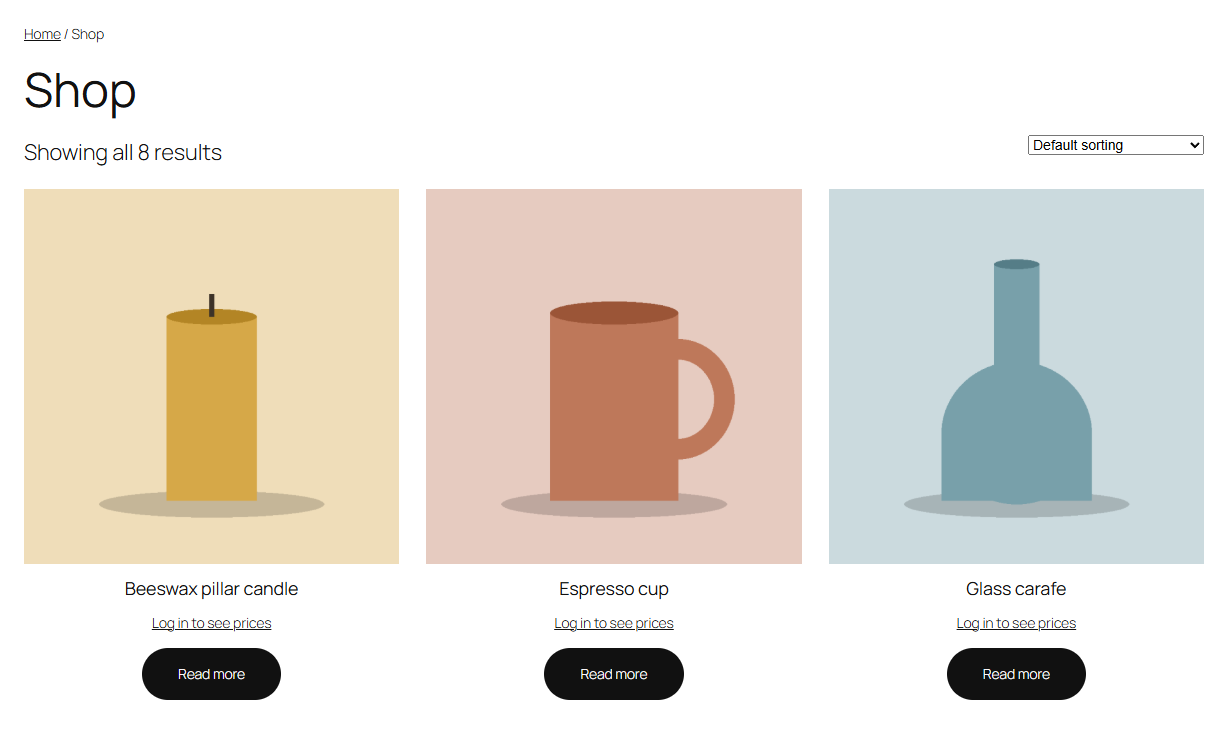
- Change the messages if you like. Guests see "Log in to see prices", linking to My Account. Customers without a group see "Apply for a wholesale account to see prices", linking to the application.
- Click Save Changes.
Whoever can't see prices can't add products to the cart either: the product page has no Add to cart form and shop buttons read Read more. Shop managers and administrators always see prices.
Skip this step if you also sell to the public: Trade customers get their prices, and everyone else carries on as before.
Show the retail price next to the trade price (optional)
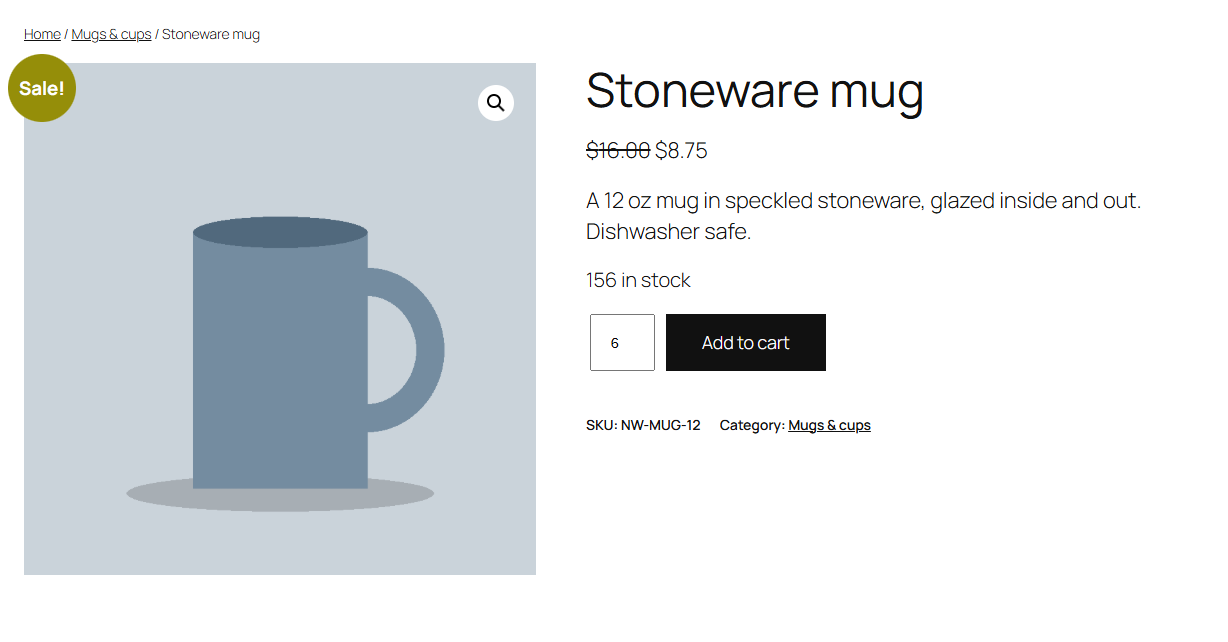
By default, trade customers see only their own price, as if it were the regular price. To show them the saving, go to WooCommerce → Wholesale → Settings, tick Show the retail price struck through next to a group's price under Prices, and click Save Changes. Trade prices then show the way WooCommerce shows a sale, including the Sale! badge in most themes.
Check it works
- Open your shop in a private browser window, logged out. You see regular prices, or "Log in to see prices" if you hid them.
- Apply from your "Trade accounts" page with a new email address. In the admin, the application waits under WooCommerce → Wholesale → Applications, and the Users screen shows Applied in the Wholesale group column.
- Approve it, then log in as that customer. My Account → Wholesale account says the account is in the Trade group, and the candle that was 24.00 now shows 16.80.
- Add it to the cart and go to checkout. The cart, the checkout and the order all use the trade price.
Common questions
Can a customer be in two groups? No, one at most. For a customer who needs something different from their group, give them their own price list on their profile.
Do coupons still work for trade customers? Yes. Coupons are taken off the customer's own price, so a 10% coupon comes off the trade price.
Will trade customers keep their account role? Yes. They keep their role (usually Customer): the group is added next to it, and nothing else about their account changes.
Do trade prices work with the Checkout block? Yes, in the Cart and Checkout blocks and in the classic cart and checkout.
Related
You’re set

WholesalelineB2B accounts for WooCommerce: customer groups with their own prices, applications, quantity rules, payment terms, tax exemption and hidden prices.
See Wholesaleline