
Installation
Install Checkoutline from WordPress.org and add your first checkout field in a few minutes.
Checkoutline is free and listed on WordPress.org, so you can install it straight from your dashboard.
Install the plugin
- Make sure WooCommerce is installed and active. Checkoutline won't activate without it.
- Go to Plugins → Add New Plugin and search for Checkoutline.
- Click Install Now on "Checkoutline – Checkout Field Editor for WooCommerce", then Activate.
If you have the zip file instead, use Plugins → Add New Plugin → Upload Plugin, choose the file, then Install Now and Activate.
Nothing changes at checkout yet: Checkoutline only adds the fields you create, and leaves WooCommerce's own fields as they are until you change them.
Add your first field
- Go to WooCommerce → Checkout Fields. There's also a Checkout Fields link under Checkoutline on the Plugins screen.
- Click Add your first field (or Add field at the top).
- Type a Label, for example "Gift message". The key is filled in from it.
- Choose a Section: contact information, the addresses, or the order.
- Choose a Type: text, text area, dropdown or checkbox.
- Click Add field.
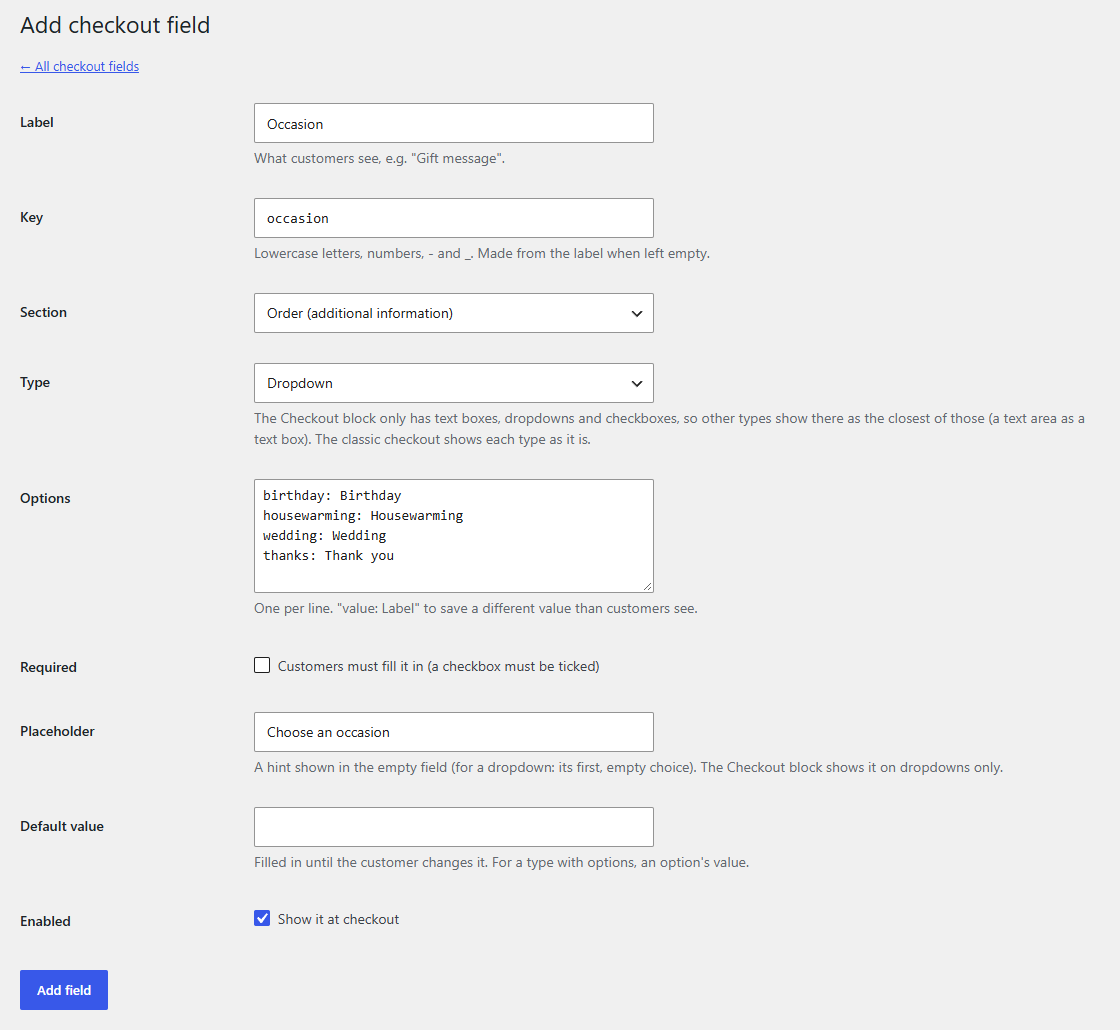
Now open your checkout in a private browser window with something in the cart. The field is there, in the section you chose, in both the Checkout block and the classic checkout.
Tip
Not sure which checkout your store uses? Edit the Checkout page under Pages. If you see a Checkout block, it's the Checkout block; if you see [woocommerce_checkout], it's the classic checkout. Checkoutline works the same with either.
What's next
- Adding and editing fields goes through every setting on the field's screen.
- Field types explains how each type looks in each checkout.
- WooCommerce's own fields renames the address fields or makes them optional, required or hidden.
- Answers on orders and emails shows where customers' answers end up.